Monday, September 18, 2017

How to Convert Apple Music to MP3 for Android Phone

If you have just moved from an iOS device(iPhone 5/6/6s/7/7 Plus, iPod nano, iPod shuffle...) to an Android phone or tablet, such as Samsung Galaxy, HTC, Sony, Google Pixel, you might want to transfer your iTunes songs or Apple Music tracks to your new Android phone.


Before finding a way to convert Apple Music M4P to MP3, what you need to know is Apple Music is that Apple adds a DRM (Digital Rights Management) layer to its streaming music collection. That is to say, if you want to enjoy Apple Music on your Android phone, first of all, you should remove DRM protection from Apple music. So how can you remove the DRM from Apple Music and then play these M4P music files on Android phone without limitations any more?

To enjoy Apple Music on Android phone, Apple Music Converter comes to your needs. The program will remove DRM protection from Apple Music tracks and convert them from M4P to MP3 at 16X speed on your Mac or Windows. Besides, you don't need to download the Apple Music songs to convert them since Apple Music Converter automatically syncs with iTunes Library and Playlists. Here is the detailed guide.


d_win d_mac

Tutorial on How to Convert Apple Music to MP3 for Android


Step 1. Install Apple Music Converter


Click the "Download" button above to get the free trial version of Apple Music Converter. Then, install and launch it on your computer. The itunes will be lauched automatically at the same time.

launch apple music converter

Step 2. Add Apple Music


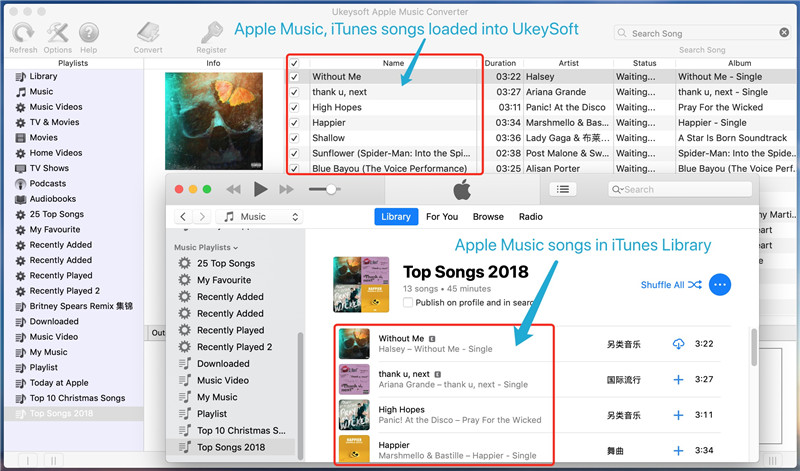
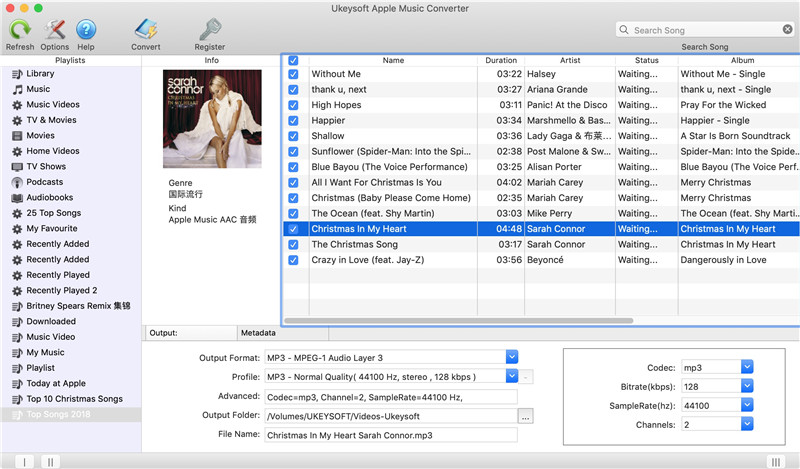
Choose Apple music you want to convert. Click the relevant Playlists category and select one or more apple music files you want to convert.
select apple music to convert

Step 3. Select MP3 as Output Format


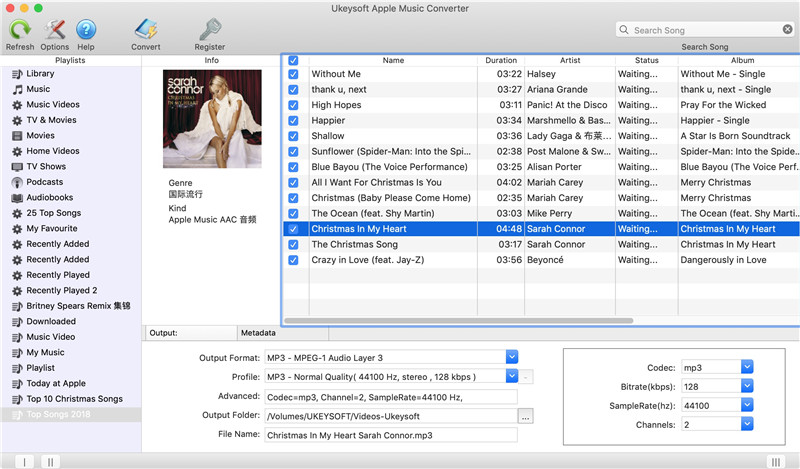
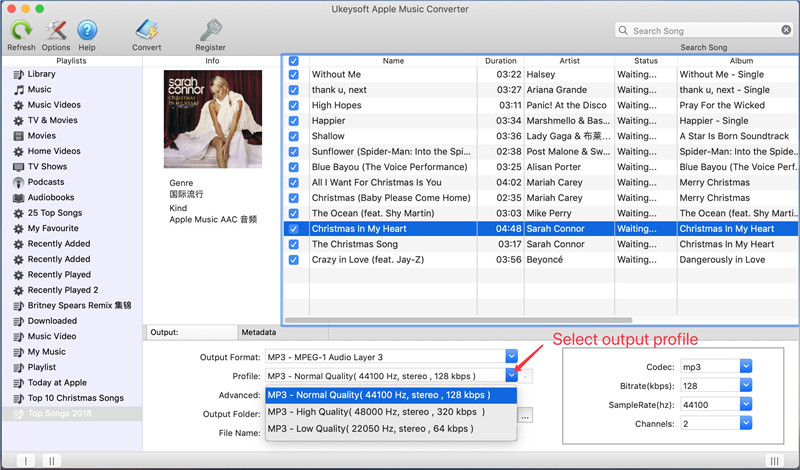
In the pop-up window, you can choose output path, output format, and even the conversion speed. WAV, AAC, MP3, and FLAC are available to choose. Here suggest you set MP3 as output format, select the destination folder you want to save your output files in. You can also adjust audio parameters like sample rate, bit rate, etc.

select mp3 output profile

Step 4. Convert M4P Apple Music to MP3 for Android


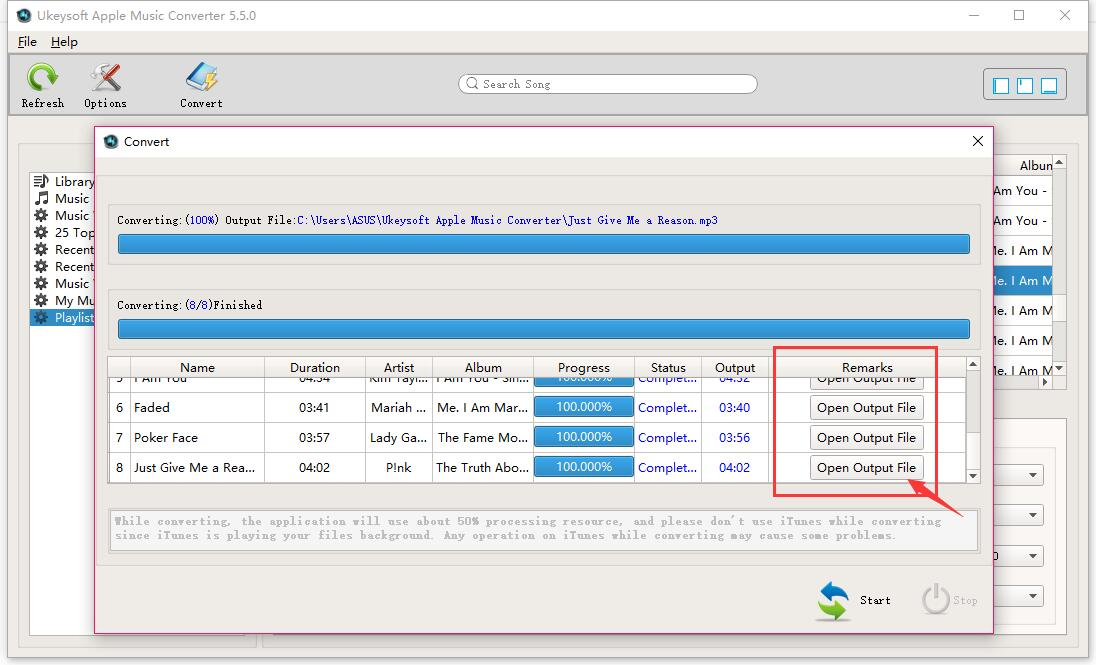
After that, click “Convert” button to start converting Apple Music from M4P music to MP3 and save the converted MP3 Apple songs on the computer.
convert Apple Music from M4P to MP3

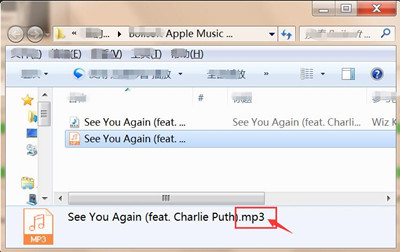
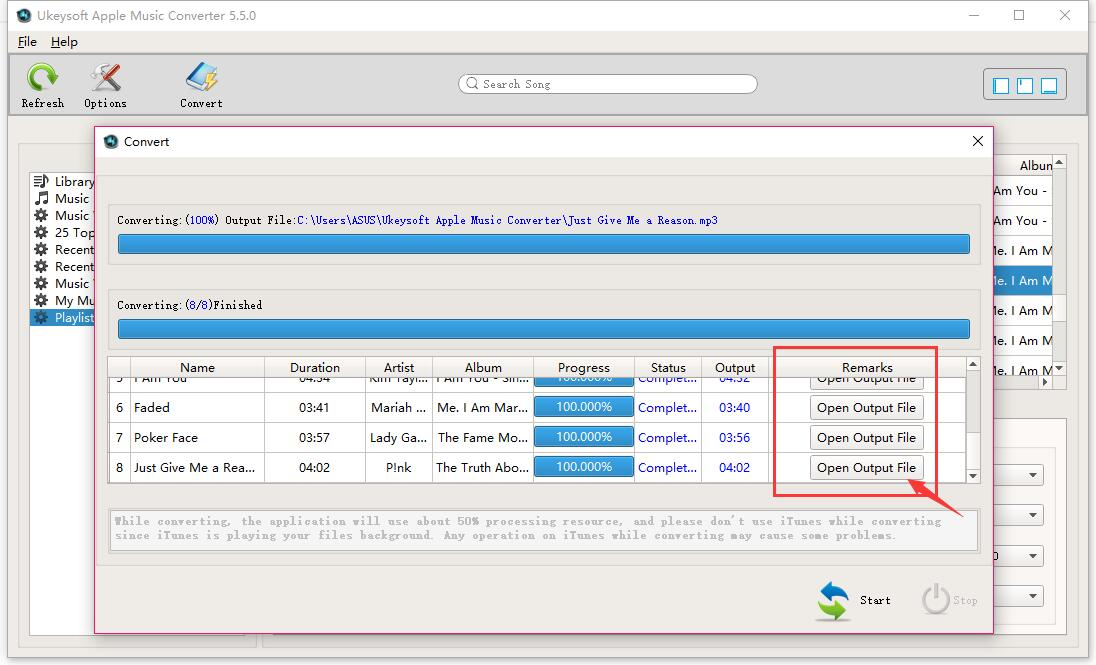
After a while, once the conversion is completed, you can click on the “Open Output File” button to view the converted music file on PC.

view converted mp3 apple music files

d_win d_mac

Step 5. Transfer the Converted Apple Music to Android Phone


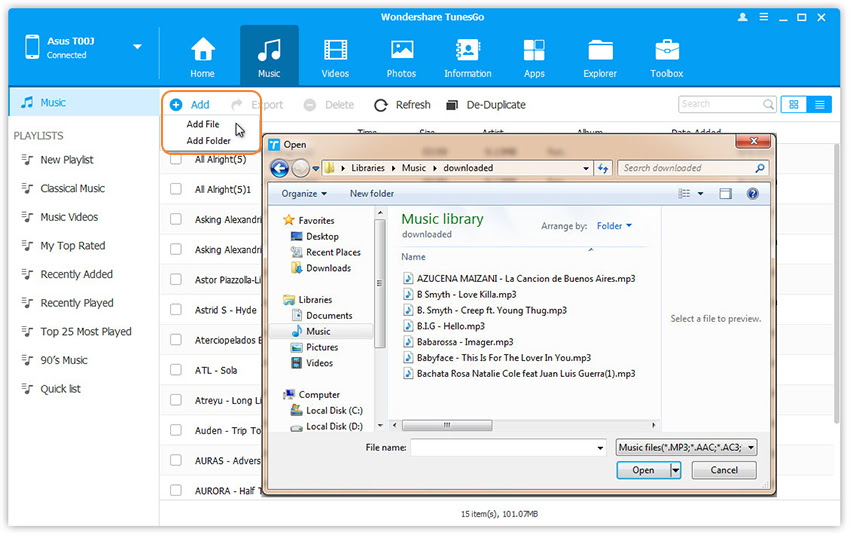
Now all of your Apple Music songs are DRM-free version. Please connect your Android phone to computer using a USB cable, and then open the Android Manager software and transfer the converted music to your HP TouchPad, Samsung Galaxy Tab, BalckBerry PlayBook, Kindle Fire, HTC phones, Samsung Galaxy, Motorola Droids, car video, any other MP4/MP3 player and cell phone for streaming.
transfer music from pc to htc

Read more:

How to Play Apple Music on Samsung Galaxy Note 8

How to Convert Apple Music to MP3

How to Play Apple Music on Samsung Galaxy Note 8

“Help! How can i convert my iTunes music to MP3 for Playing on Samsung Galaxy Note 8. After getting new Samsung Galaxy Note 8 in hand, I want to download the streaming music to my new Galaxy Note  Note 8phone. How can i make it simple?”

transfer Apple Music to Samsung Galaxy Note 8
Have got a new Samsung Galaxy Note 8 and want to listen Apple Music on your new Galaxy Note 8? Want to transfer Apple Music from iPhone to Samsung Galaxy Note 8?This article teach you how to stream Apple Music to Samsung Galaxy Note 8 easily.As we all know, Apple music/iTunes music files are protected in a particular format, this is DRM protection. The DRM protection of Apple Music prevents people from transferring Apple Music songs to non-Apple devices for enjoying. For example, a song can be listened to, but not copied or shared; an ebook can be viewed on a certain type of device. So it is very complicated if you want to free download streaming music to Android mobile phone, like new brand Samsung Galaxy Note 8, Galaxy S9/S8, Huawei Mate 10/Mate 9, Huawei P20/P10/P9,etc.

Thankfully, you can try to Apple Music Converter to remove DRM from Apple Music and then sync the unprotected Apple Music files to Samsung Galaxy Note 8. Thanks to this professional DRM removal tool, you can not only convert purchased DRM-protected songs to DRM-free versions with upto 10x conversion speed and excellent output quality, and you can convert purchased audio tracks including both Music and Audiobook if they can played in iTunes.

Free download this Apple Music Converter and follow the simple steps below, try to convert Apple Music to MP3, so that you can listen to your purchased iTunes musics on any device such as Samsung Galaxy Note 8, Galaxy S8+/S8/S7, iPod, iPhone and car MP3 CD players, etc.

d_win d_mac

How to Convert and Transfer Apple Music to Galaxy Note 8


Step 1. Launch Apple Music Converter on PC/Mac Computer


Install and launch Apple Music Converter. Once the app started normally, the iTunes will be launched automatically at the same time.

launch apple music converter

Step 2. Select Apple Music to Convert


Afterwards, It will load all you Apple Music songs and playlists you have added to iTunes library on the interface of Apple Music Converter program, select the Apple music you want to convert, including music, playlists, Audiobooks, M4P Audio, iTunes movies and TV shows.

select apple music to convert

Step 3. Select the Output Format - MP3


Now, you can set the output format, customize profile, name format for the converted music under the window. Here, the best advice is to choose MP3 format.

select mp3 output profile

Step 4. Convert M4P Apple Music to MP3


Simply click “Start Convert” button to start converting the selected Apple music to MP3 files.

convert Apple Music from M4P to MP3

Finally, you can explore the output files and folders by clicking “Open Output File” button to view the converted music file on the computer.

view converted mp3 apple music files

d_win d_mac

Step 5. Transfer the Converted Apple Music to Galaxy Note 8


If you wanna to play Apple Music on Samsung Galaxy Note 8, Android Manager is your best tool. It can be used to add/transfer music songs from computer to your Samsung smartphone freely as you like.What's more,this Android Manager/Transfer tool also can hep you transfer music from iTunes to Samsung Galaxy Note 8 easily.

transfer music from pc to htc

Tips: If you want to play Spotify Music on Samsung Galaxy Note 8/Note 5/Note 4, Galaxy S9/S8/S7/S6/S5 and other Android phone,you can use a Spotify Music Converter to free download songs from Spotify,and then convert the downloaded Spotify Music to MP3 for Android.

Related Article


How to Free Download Spotify Music for Android

How to Convert Apple Music to Android

Keep Apple Music Tracks Playable after Canceling Subscription

Sunday, September 17, 2017

How to Convert Apple Music to MP3
Due to the DRM protection inserted in Apple Music songs, the subscribe users also can not transfer Apple Music songs to iPhone, iPod nano, iPod shuffle and iPod classic, Android mobile phone, MP3 player directly. So removing DRM protection is absolutely necessary, and Apple Music to MP3 Converter is a great helper, with which you can remove DRM and convert Apple Music tracks or playlists to any media players for listening to Apple Music anytime and anywhere.The article recommend you the best Apple Music converter for Windows  and Mac to remove DRM from Apple Music and convert Apple Music songs to DRM-free MP3.

Tags:apple music converter, apple music to mp3, remove DRM from Apple music, free apple music recorder, convert apple music to mp3

convert Apple Music to MP3
There will always come the time when you want to convert Apple Music songs to MP3 for enjoying. The reasons are various. Maybe you want to enjoy the songs even after unsubscription, maybe you want to play the music on devices that do not support Apple Music songs, or maybe you just hate DRM and want to get rid of the disgusting DRM. Whatever the reasons, you need a converter to help you convert Apple Music songs to MP3 audios. Here the article will introduce three Apple Music Converters and analyze their merits and shortcomings to help you choose the best one.

iTunes Music to MP3 Converter for Mac and Apple Music to MP3 Converter for Windows is a professional and simple app that allows you to convert any of the songs in your iTunes library,it can convert Apple Music songs, audiobooks and M4P music, to MP3, WAV, FLAC or AAC and save them on local storage. It can serve as Apple Music Converter, Audiobook Converter and M4P Converter. Unlike other Audio Converters, it record songs in the background, thus it can convert Apple Music songs, audiobooks and M4P music at 20X faster speed. You can easily convert a 4-munite song to plain MP3 within 20 second. Besides, iTunes DRM Audio Converter balances the quality with speed, which means that you can convert music with lossless quality kept. What's more, you can convert any songs to plain MP3/AAC/FLAC with all ID tags and metadata kept.

Download Mac Version Download Mac Version  

Apple Music Converter Key Features:

-Convert Apple Music to MP3/AC3/AIFF/FLAC/M4A
-Convert iTunes M4P songs to MP3
-Convert iTunes audiobooks M4B to M4A/MP3
-Convert Audible AA/AAX audiobooks to MP3/M4A
-Remove DRM from Apple Music and Audible audiobooks

Easy Steps to Convert Apple Music to MP3


Step 1. Launch Apple Music Converter for Mac or Windows


First of all, download and install Apple Music Converter on your computer or Mac. Then, run the program from the desktop icon. iTunes will be opened at the same time automatically.

Download Mac Version Download Mac Version  

The start screen shows all the list of iTunes library locations on the left panel, audio tracks and track information at the center and output conversion settings on the bottom panel.

Launch Apple Music Converter

Step 2. Select Apple Music you Want to Convert


Click the playlist in the left column, then you can easily select the Apple music that you want to convert. The program supports batch conversion so you can choose a few Playlists, or select a few songs.

Select Apple Music

Note: If you cannot find the music you want to convert, you can search it. And please make sure that you have downloaded and saved the Apple Music tracks you want on computer.

Step 3. Choose MP3 as Output Format


At the bottom of the main interface, you can specify the MP3 as the output format. According to your needs, you can also choose to output to AC3, M4A, M4R, AIFF, FLAC format, etc.

In addition, you can also specify the location for saving output MP3 files. as well as adjust the output parameters. Here we suggest you set the bitrate as 256kbps which is the Apple Music bitrate. By doing so, you can keep the original quality.

Choose MP3 as Output Format

Step 4. Start Convert/Rip Apple Music as MP3


Just click the "Convert" button on the toolbar, the program will immediately pop up the conversion window. Once complete, you can click the "Explore output File" button to locate the converted Apple Music in MP3 format.

Apple Music as MP3

Free download the Apple Music Converter for Mac and Windows and try to record your Apple Music as MP3 format,or convert iTunes Music from M4P to DRM-free MP3.

Download Mac Version Download Mac Version  


Tips: If you want to copy or transfer Spotify Music tracks to iPod nano, iPod shuffle, iPod classic, iPhone, Android phone or MP3 player, you can use this Spotify Music Converter to remove DRM from Spotify Music and transfer or copy the converted Spotify Music tracks to iPhone/iPad/iPod/Android phone , there is a easier way to help download and convert Spotify Music to MP3,and keep your Spotify premium Music and playlist forever.

Related Articles:


How to Remove DRM from Apple Music

How to Convert Apple Music to M4A

How to Convert iTunes M4V Videos to MP4

How to Play Apple Music on MP3 Player

How to Play Apple Music on Android

How to Play Apple Music on iPod iPad